
PDF Not Reading Aloud on iPhone? Check These 5 Things

First copy a sentence from the PDF into a note. If you cannot select it, or the pasted text is wrong, fix the document before changing voices. If the text copies correctly, check the reading order, language and voice download. Local TTS needs a text-based PDF; ordinary file import does not automatically run OCR on an image-only PDF.
1. Check whether the page contains text
A PDF page can be a photograph of words. It looks readable to you, but a text-to-speech reader needs actual text it can extract. Try selecting one sentence, then copy and paste it into a note. Repeat on another page if the document mixes scanned and digital pages.
If no words can be selected, look for a text-based version from the document’s source. For a short printed passage, Local TTS offers Choose photo and Scan document as separate ways to recognize text. The photo-to-speech guide explains how to review the result.
Do not keep importing the same image-only PDF expecting a different result. The next step is recognition or a different source file, not a faster voice. A PDF can also contain a poor text layer, so successful selection is only the first check.
Captured in Local TTS on iPhone with sample documents. Labels and available voices may vary by app version and language.
2. Check access and copying restrictions
If the PDF opens only after a password, or its viewer prevents copying, extraction may be restricted. A file that you can visually read is not always available to another app as selectable text.
Ask the document’s owner for an accessible, unprotected reading copy when appropriate. If you created the file, export another copy from the original document using settings that preserve text. Do not bypass restrictions on someone else’s document.
Also confirm that the entire file has downloaded from cloud storage. An unavailable cloud file and a PDF with no usable text are different problems. Open it from Files while connected before trying another import.
Hear a little of what’s possible.
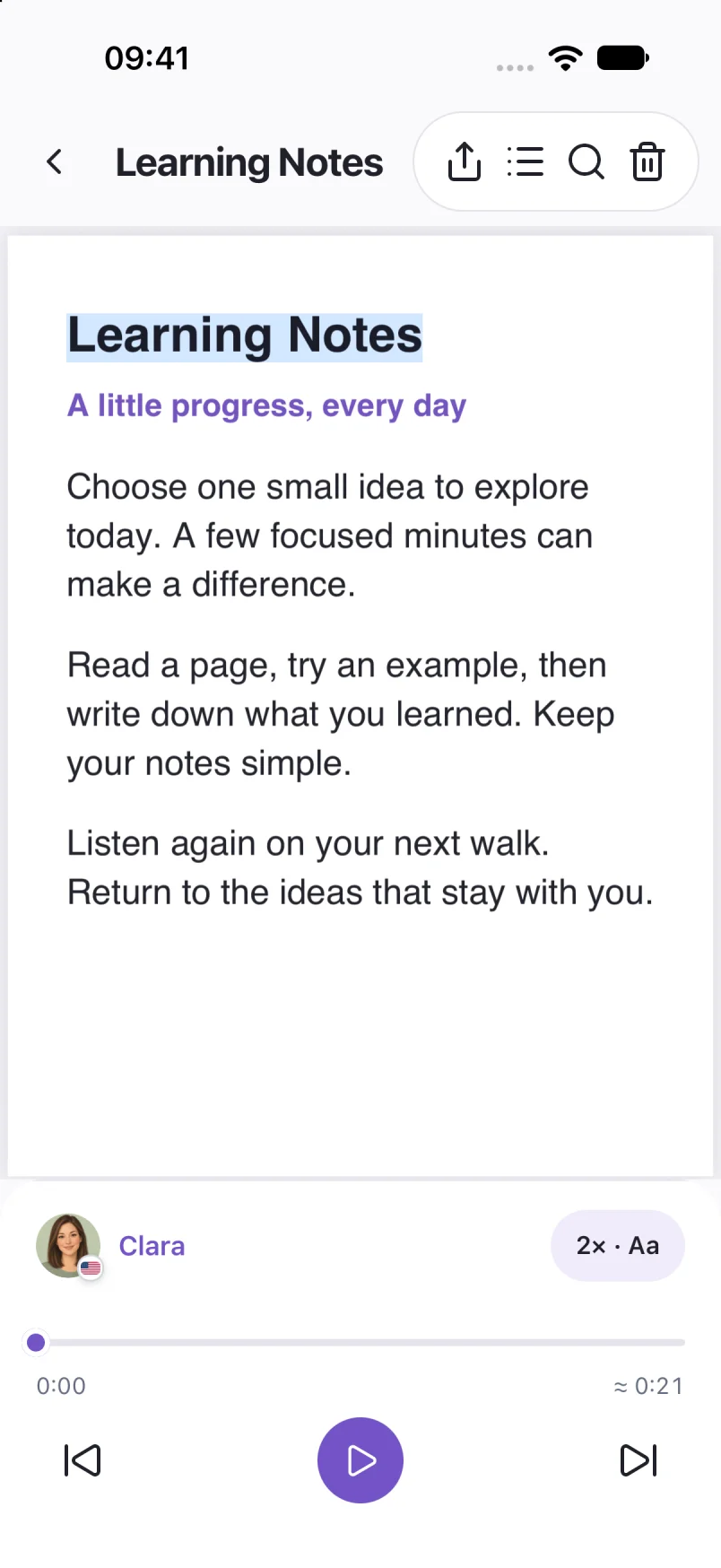
Clara · EnglishChoose one small idea to explore today. A few focused minutes can make a difference. Read a page, try an example, then write down what you learned. Listen again on your next walk, and return to the ideas that stay with you.
A prerecorded sample made with the voice model used in Local TTS.
3. Listen for columns, headers and table fragments
When narration jumps between unrelated sentences, compare the extracted text with the page. A two-column article can be extracted across the page instead of down one column. Headers, footers and page numbers can interrupt an otherwise correct passage.
Copy a small section into a note and read the pasted order. If it is mixed up there too, changing speech settings will not reconstruct the intended layout. For a short passage, manually arrange a clean reading copy. For a whole book or report, ask for a simpler text export or an accessible source document.
Tables need particular care. Hearing “20, 30, 40” without column labels may be technically accurate text but not a useful explanation. Keep the original visible for charts, tables and formulas; do not treat narration as a complete replacement for visual information.
4. Compare the pasted characters with the original
Sometimes selected words paste as symbols, missing letters or broken spacing. This suggests an extraction or text-layer problem rather than a voice problem. A word can look correct on the page because of the way its font is drawn, while its underlying text is different.
Try a fresh export from the original editor if you have it. For a scanned page with an inaccurate text layer, recognize a clear image and carefully review the result. Check names, dates, decimal points and abbreviations, where a small error can change meaning.
For your own short excerpt, a plain-text note is a useful comparison. If the corrected note speaks normally, you have narrowed the problem to the PDF’s text rather than the reader’s basic playback.
5. Check the language, voice and playback state
If the pasted text is correct but the pronunciation is poor, choose the document’s reading language and try a voice available for it. Selecting a language does not translate the document. A passage mixing languages may need separate reading copies or a different voice choice.
If you hear nothing at all, check media volume, audio output and whether the selected voice has finished downloading. A preview of a voice is not a completed download. Also check whether a free document preview or a sleep timer has ended the session.
Once a simple note works, return to a short text-based PDF and use the PDF import steps. For a trip, repeat the offline check with the exact voice and document you plan to use.
If the same clean file still fails, contact support with the app version, file type and a description of the failure. Start with a nonsensitive sample you created yourself rather than sending a private document.
Common questions
Why does a PDF look clear but produce no speech?
It may contain images rather than extractable text, or copying may be restricted. Try selecting and pasting a sentence before changing reader settings.
Will choosing another voice fix the reading order?
No. A different voice changes how text sounds, not the order in which it was extracted. Check the reading copy and fix the source or rearrange a short excerpt.
Does Local TTS automatically OCR every PDF?
No. Regular PDF import needs selectable text. Photo and camera recognition are separate paths for bringing printed or pictured words into the reader.
Sources & useful references
Instructions use English app labels; wording may differ by language or version. This guide describes Local TTS features and includes practical checks for your own files.