
How to Read a PDF Aloud on iPhone, Even Offline
To read a PDF aloud on iPhone, open a PDF that contains selectable text in Local TTS, review the imported text and choose a downloaded voice. Press play to hear it with sentence highlighting. Once the voice and document are on your phone, speech generation works offline.
First, check that your PDF contains text
A PDF can look like a normal page while containing only an image. Open it in a PDF viewer and try selecting a sentence. Copy it into a note. If the words paste correctly, you have a useful first check that a reader can extract them.
If nothing can be selected, the file may be a scan. Text recognition, also called OCR, is needed before speech can read those words. Local TTS imports text-based PDFs; its photo and camera tools provide a separate way to recognize printed text. Follow the photo-to-speech guide if you are starting with a picture or a paper page.
Selection is a practical check, not a guarantee. A protected file may restrict extraction, and a page with several columns can produce text in an unexpected order. Copying a paragraph also helps you spot broken characters before importing the whole document.
Import the PDF and start listening
- Make the file available on your iPhone. Save the PDF in Files. If it is stored in a cloud service, let it download while you have a connection.
- Open Local TTS and add it to your library. Open Add to library, choose Choose file and select your PDF.
- Review the document. Check the beginning and a passage in the middle. Confirm the reading language and correct extracted text where needed.
- Save and open the reader. Choose a voice for the document’s language. Complete its download if it is not already available.
- Press play. Follow the highlighted sentence, then adjust the speed until it feels comfortable.
Start with a short, simple document. A one-page note is easier to check than a research paper full of tables. Once that works, you can bring in longer reading with a clearer idea of how the app handles your files.
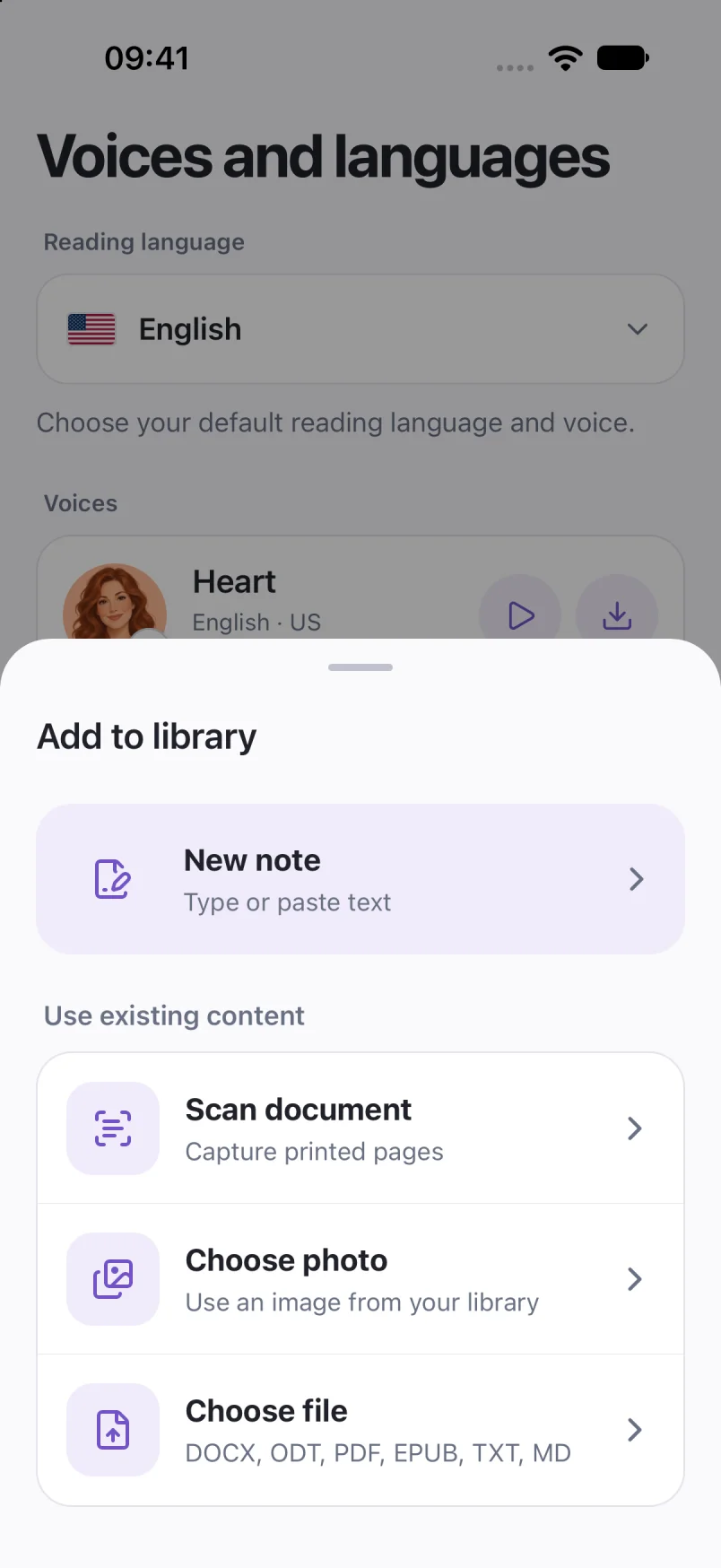
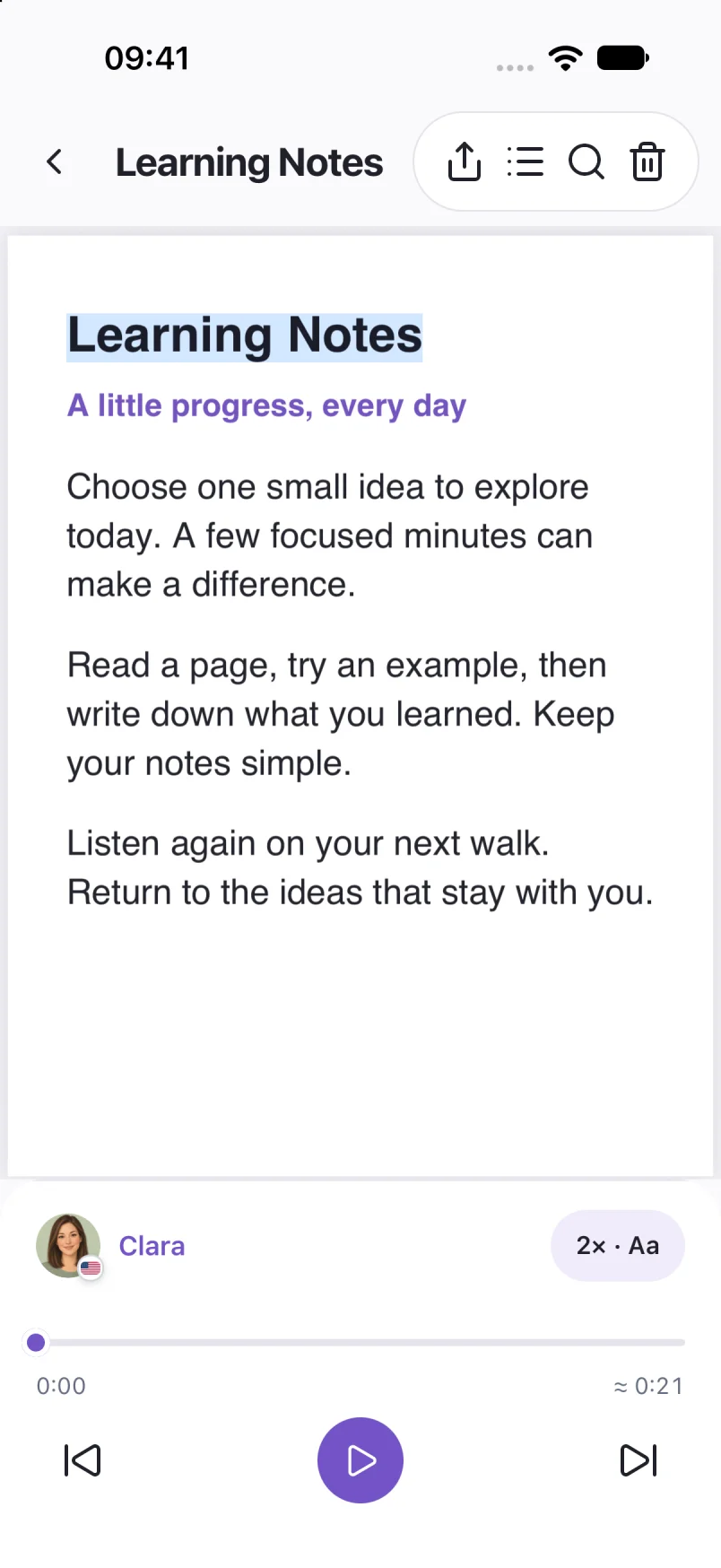
Captured in Local TTS on iPhone with sample documents. Labels and available voices may vary by app version and language.
Hear a little of what’s possible.
Clara · EnglishChoose one small idea to explore today. A few focused minutes can make a difference. Read a page, try an example, then write down what you learned. Listen again on your next walk, and return to the ideas that stay with you.
A prerecorded sample made with the voice model used in Local TTS.
Make a long document easier to listen to
Listen to the first few sentences at the default speed before speeding up. Dense terminology, names and abbreviations may need a slower pace than a familiar article. Use the sentence controls to return to a thought instead of restarting the entire document.
Sentence highlighting lets you follow the words on screen. You can also listen in the background or with the iPhone locked. Saved reading progress helps you continue later, and the sleep timer can stop playback during an evening listen.
Keep the original PDF nearby when the meaning depends on a chart, equation or visual layout. Spoken text can accompany those pages, but it does not describe every visual relationship. For a book, an available DRM-free EPUB may be a better starting file: see how to listen to EPUB books on iPhone.
Read the PDF aloud without internet
Download the voice and import the PDF before leaving Wi-Fi. Then open the saved document and try a passage with Wi-Fi and cellular data turned off. This checks both the file and the voice you actually plan to use.
Local TTS generates speech on the device after the voice is ready. You do not have to export the entire PDF as audio just to listen offline. Voice downloads and purchases still need a connection, and a PDF that exists only in cloud storage must first be downloaded.
Before a flight or a long commute, use the offline text-to-speech checklist. It also covers trying a fresh sentence so you can distinguish working local speech from replaying audio you already heard.
If the PDF sounds wrong, check these things
- No readable text: check whether the page is an image. Use a text-based copy or recognize a photo of the page.
- Sentences jump between columns: review the extracted text. For a short passage, copy the intended reading order into a new note.
- Headers and page numbers interrupt the narration: remove unwanted text in the editable reading copy where appropriate.
- Pronunciation is unexpected: check the reading language, then try another available voice. Choosing a language does not translate the document.
- Playback asks for a download: reconnect and finish downloading the selected voice before trying offline again.
You can try a free listening preview before upgrading. Full listening and premium features require an in-app purchase; the app shows the available plans. Check that your own PDF imports well during the preview. For a more detailed diagnosis, follow the five PDF troubleshooting checks.
Common questions
Can Local TTS read a scanned PDF aloud?
Ordinary PDF import needs selectable text. For a paper page or image, use Choose photo or Scan document, review the recognized words, and then listen. An image-only PDF is not automatically made readable by ordinary file import.
Will the voice read tables and diagrams accurately?
Do not rely on speech alone for tables, diagrams or equations. Extracted text may lose the relationships conveyed by the layout. Compare the reading text with the original page.
Can I save the PDF narration as an audio file?
Local TTS can export document narration as M4A with Pro. Exporting a file is separate from listening inside the reader; you do not need to export first for ordinary offline playback.
Sources & useful references
Instructions use English app labels; wording may differ by language or version. This guide describes Local TTS features and includes practical checks for your own files.