
How to Read Word Documents Aloud on iPhone

You can use Read Aloud in Microsoft Word or import a DOCX into Local TTS. For Local TTS, save the file in Files, choose it from Add to library, review the extracted words and select a downloaded voice. The reading copy focuses on text rather than reproducing Word’s page layout.
Use Word’s Read Aloud or a document reader
If you already work in Word and only need to hear the document you have open, try its built-in Read Aloud. Microsoft’s current iPhone instructions start with the ribbon, then the Review tab and Read Aloud. The interface can vary by app version; Microsoft links the current steps below.
Local TTS is useful when you want Word files, PDFs, notes and books together in one listening library. Speech is generated on the iPhone once a voice is downloaded. You can keep your place and return to a saved document without keeping Word open.
Compare a short passage in each option before moving a long report. Check pronunciation, paragraph order and whether the workflow fits where your documents already live.
Import a DOCX saved in Files
- Save a local copy. If the document is in cloud storage, download it to Files while online. Confirm that the filename ends in .docx.
- Add it to Local TTS. Open Add to library, tap Choose file and select the document.
- Review what was imported. Compare the first paragraph, a heading and any list or table against the original. Correct text in the editable reading copy where needed.
- Choose a voice. Match the reading language to the text and finish downloading the voice.
- Listen to a preview. Check the beginning at a comfortable speed before committing to a full document.
If you start in another editor, export a DOCX or a text-based PDF using that editor’s export tools. Renaming a .doc or .pages file to .docx does not convert it. For a PDF export, follow the PDF listening guide.
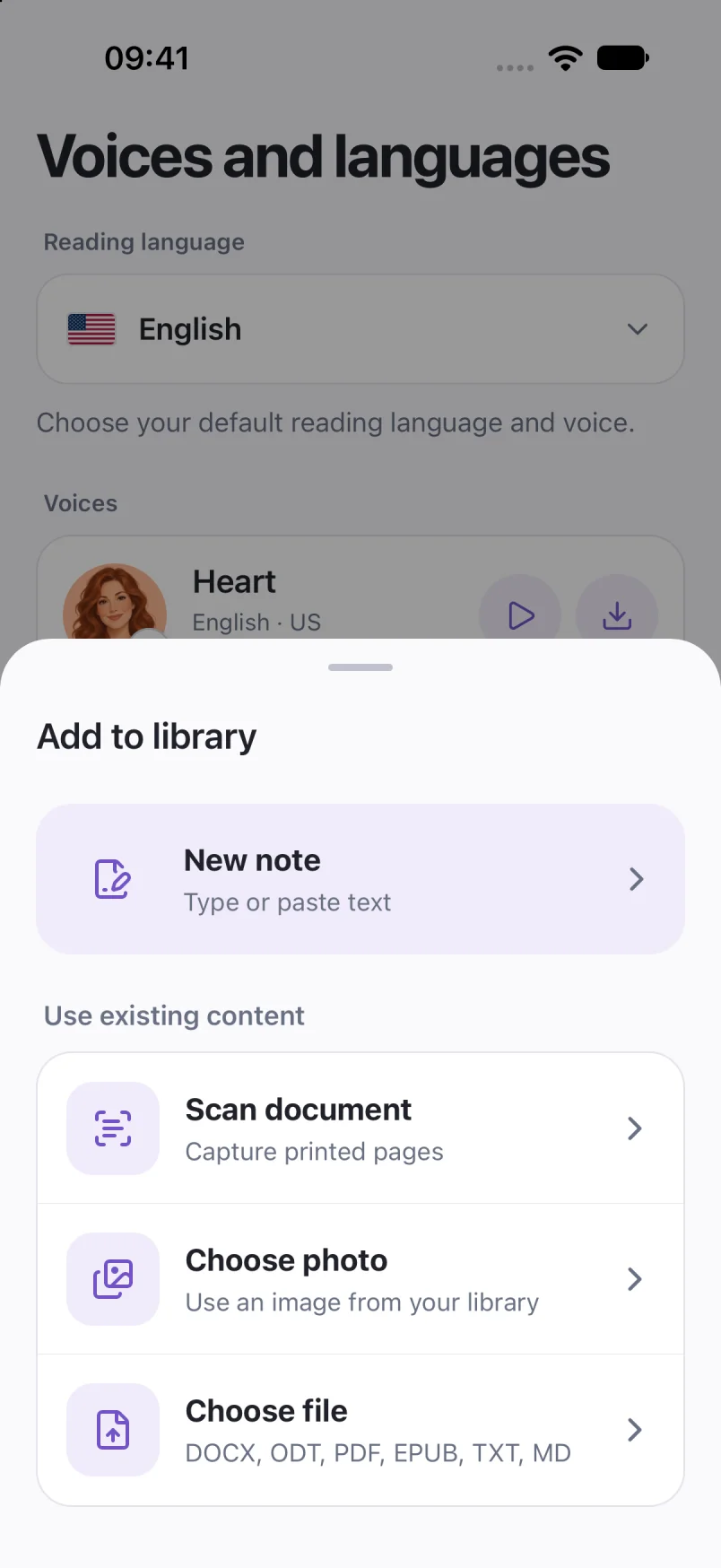
Captured in Local TTS on iPhone with sample documents. Labels and available voices may vary by app version and language.
Hear a little of what’s possible.
Clara · EnglishChoose one small idea to explore today. A few focused minutes can make a difference. Read a page, try an example, then write down what you learned. Listen again on your next walk, and return to the ideas that stay with you.
A prerecorded sample made with the voice model used in Local TTS.
What happens to formatting, images and tables?
Local TTS makes a reading copy of the document’s text. Its simplified reader is not a replacement for Word when you need to inspect exact pagination, image placement or formatting. Keep the original document available for anything whose meaning depends on its layout.
Lists can often be followed as words, but a table is harder: a listener cannot see which column a value belongs to. For a listening copy, turn the important rows into complete sentences. For example, replace a row containing “Monday | Review | 20 min” with “On Monday, review your notes for twenty minutes.”
Images and diagrams need your own description if the important information is not already in the text. Check names, abbreviations and numbered sections by ear; a visually tidy document may still need a little editing to sound natural.
Take the document with you
Download the voice and import the file before leaving your connection. Open the saved reading copy and try a new passage with Wi-Fi and cellular data off. The offline setup checklist walks through the preparation.
You can listen inside Local TTS without creating a separate audio file. If you want to save or share a narration, Pro can export the text as M4A audio. Review the reading copy before exporting so you do not save avoidable pronunciation or extraction errors.
If an import fails, first try a short unprotected DOCX exported from the original editor. A successful simple file helps distinguish a document-specific issue from voice or playback setup. Do not remove document restrictions unless you have permission to do so.
Common questions
Can I import an old .doc file?
Use a current DOCX or text-based PDF copy. A legacy DOC file and a DOCX are different formats; changing the extension is not conversion.
Will the reader look exactly like Microsoft Word?
No. The imported reading copy is simplified for text and speech. Keep the original file for exact layout, images, charts and complex tables.
Do I need to export audio to listen offline?
No. After importing the document and downloading a voice, speech can be generated offline inside Local TTS. M4A export with Pro is a separate option.
Sources & useful references
Instructions use English app labels; wording may differ by language or version. This guide describes Local TTS features and includes practical checks for your own files.