
Offline Text to Speech on iPhone: Set Up Before You Go

For offline text to speech on iPhone, download a voice in Local TTS while connected to the internet, then import the documents you want to hear. With the voice ready and the text saved locally, the app can generate new speech without Wi-Fi or cellular data. Check your setup before you travel.
What “offline text to speech” means here
There are two different things an app might mean by offline listening: playing an audio file that was already downloaded, or creating new speech from text without a connection. Local TTS supports the second approach after the voice package is downloaded.
This matters if you want to read a new passage on a flight, rather than prepare a complete recording of every document first. The text is processed on your device for speech generation. That does not mean every part of the app works without internet: installing the app, downloading voices and making purchases still require a connection.
A cloud file is another dependency. Seeing a document’s name in Files does not prove its contents are available locally. Import the actual file into your listening library before you leave.
Download the voice you plan to use
Open the app while you have a reliable connection and select a voice for your reading language. Let its package finish downloading. A voice preview is useful for choosing the sound, but hearing a preview is not the same as confirming that the full package is ready.
Pick a voice you are happy to use for the trip and try it with your own text. If you switch later to a voice that has not been downloaded, it may need internet before it can speak.
Check available device storage before a large download. Downloaded voices occupy space, and you can manage voices and audio storage in the app’s settings. Avoid deleting the voice you need immediately before an offline session.
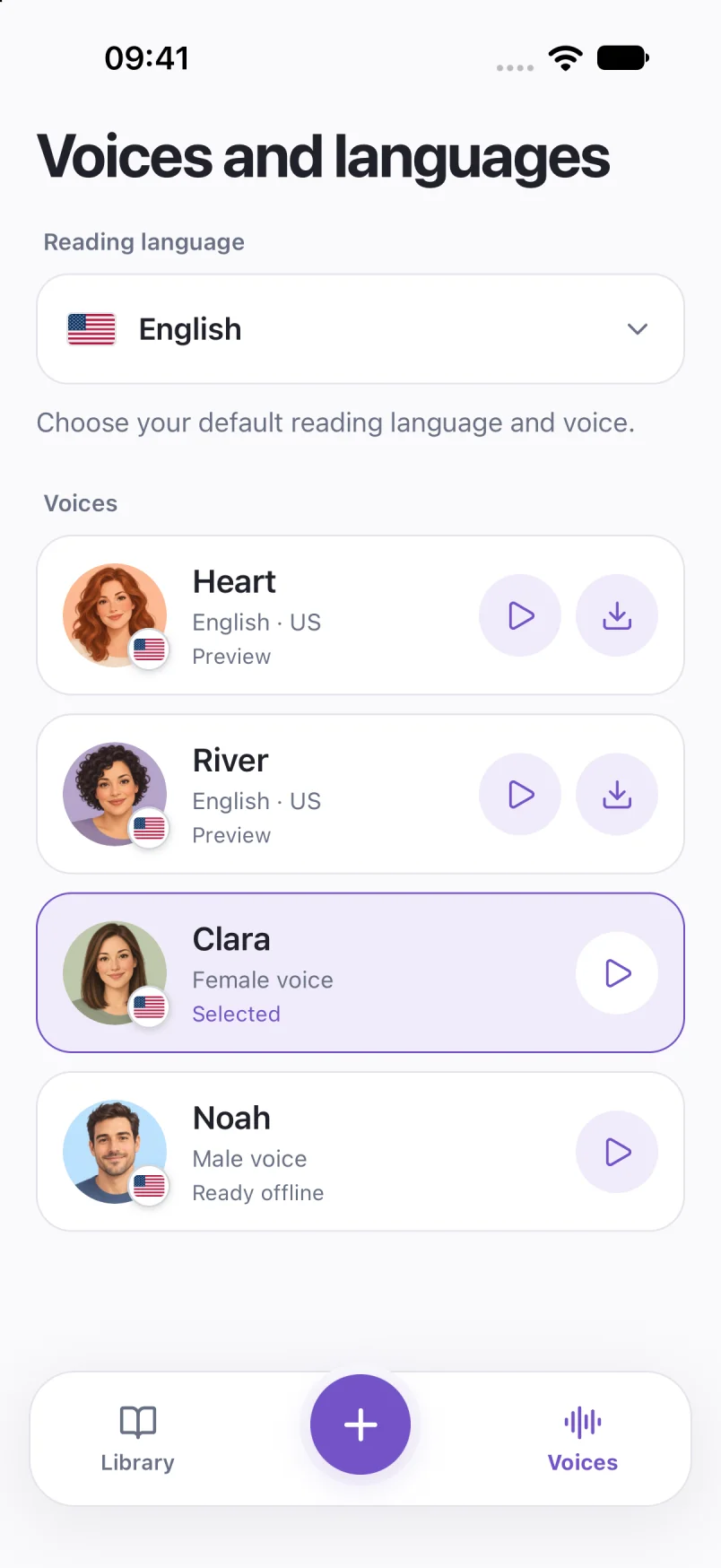
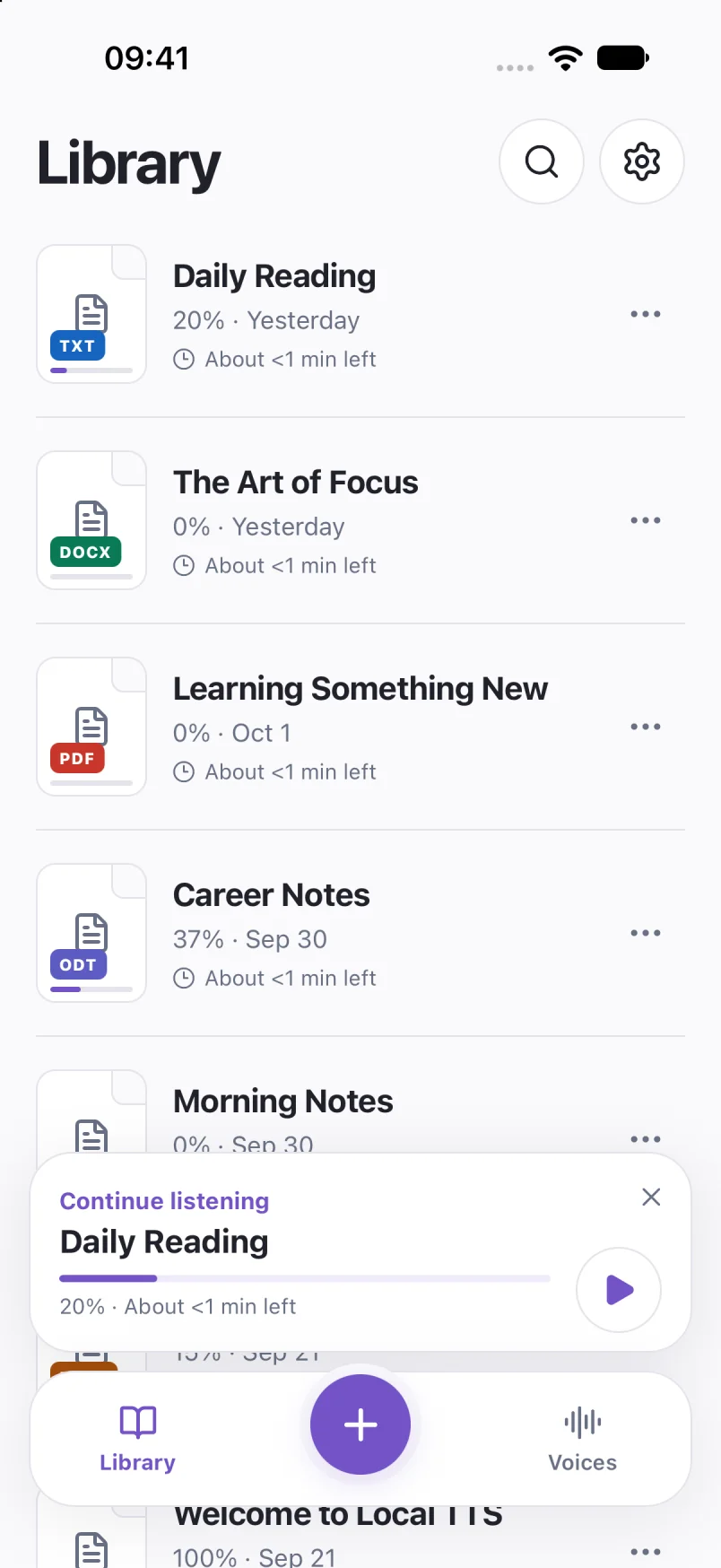
Captured in Local TTS on iPhone with sample documents. Labels and available voices may vary by app version and language.
Hear a little of what’s possible.
Clara · EnglishChoose one small idea to explore today. A few focused minutes can make a difference. Read a page, try an example, then write down what you learned. Listen again on your next walk, and return to the ideas that stay with you.
A prerecorded sample made with the voice model used in Local TTS.
Put your reading on the device
Import the documents you want from Add to library → Choose file. Open each saved item and confirm that the expected text is present. This catches a cloud download that did not finish or a file that could not be read.
- PDF: check that the page contains selectable text. The PDF listening guide covers import and common layout problems.
- EPUB: use an importable DRM-free book. Follow the EPUB guide to check the book before a long listening session.
- Printed page: recognize and review it before departure. The photo-to-speech guide explains that step.
- A short note: choose New note, type or paste your text, then save it.
Photos may also need downloading if the full image is stored only in the cloud. Preparing them in advance removes that uncertainty. Keep your original documents somewhere safe as well; do not treat a local app library as a cross-device backup service.
Check it with a fresh sentence in Airplane Mode
- Finish the setup online. Download your voice, import the reading and complete any purchase or restoration you need.
- Turn off the connections. Enable Airplane Mode and check that Wi-Fi is also off. Airplane Mode can retain a Wi-Fi setting, so verify both Wi-Fi and cellular data are disconnected.
- Open a saved document and press play. Confirm that the selected voice reads a passage.
- Try new text. Create a short note you have not played before, such as “My reading is ready for the journey.” Save it and listen. This is a more useful check of local generation than replaying a familiar sample.
- Check your actual listening setup. Try your headphones, lock the screen and confirm playback continues. You can keep Bluetooth available for headphones.
This is a checklist for your own device, not a guarantee that every file will import correctly. Do it while you still have time to reconnect and fix a missing voice or document.
What still needs an internet connection?
| Task | Connection needed? |
|---|---|
| Download the app or a new voice package | Yes |
| Buy or restore an in-app purchase | Yes |
| Fetch a document or photo stored only in the cloud | Yes |
| Generate speech with a ready voice and saved text | No |
| Listen to a saved document with that voice | No |
Local speech generation also does not imply that the app never communicates with any service. Purchases and downloads are separate from the processing of document text. Read the app’s privacy information when deciding whether it suits your requirements.
If playback does not start offline
First check the selected voice. Reconnect and finish its download if it is incomplete. Next check the document: if its words never appeared in the reader, return online and import the original file again.
If the reader opens but you hear nothing, check media volume and the selected headphone or speaker output. Also check whether a sleep timer stopped playback. Try a short new note to separate a file problem from an audio-output problem.
The free preview is intended for trying the reading experience. Full listening and premium features require an in-app purchase, so review the plan in the app before relying on a long offline session. Downloading a voice does not itself unlock full listening.
Common questions
Do I have to export every document before a flight?
No. Once the chosen voice is downloaded and the document text is saved in Local TTS, the app can generate speech locally. Export is a separate feature for creating an audio file.
Can I switch voices without internet?
You can use a voice whose required package is already downloaded. A new or removed voice package needs a connection before it can be used.
Will my documents automatically appear on another device?
Do not assume that they will. Prepare the library and voice on the particular iPhone or iPad you are taking with you, and keep copies of the original files.
Sources & useful references
Instructions use English app labels; wording may differ by language or version. This guide describes Local TTS features and includes practical checks for your own files.