
Read Text from a Photo Aloud on iPhone: A Simple Guide
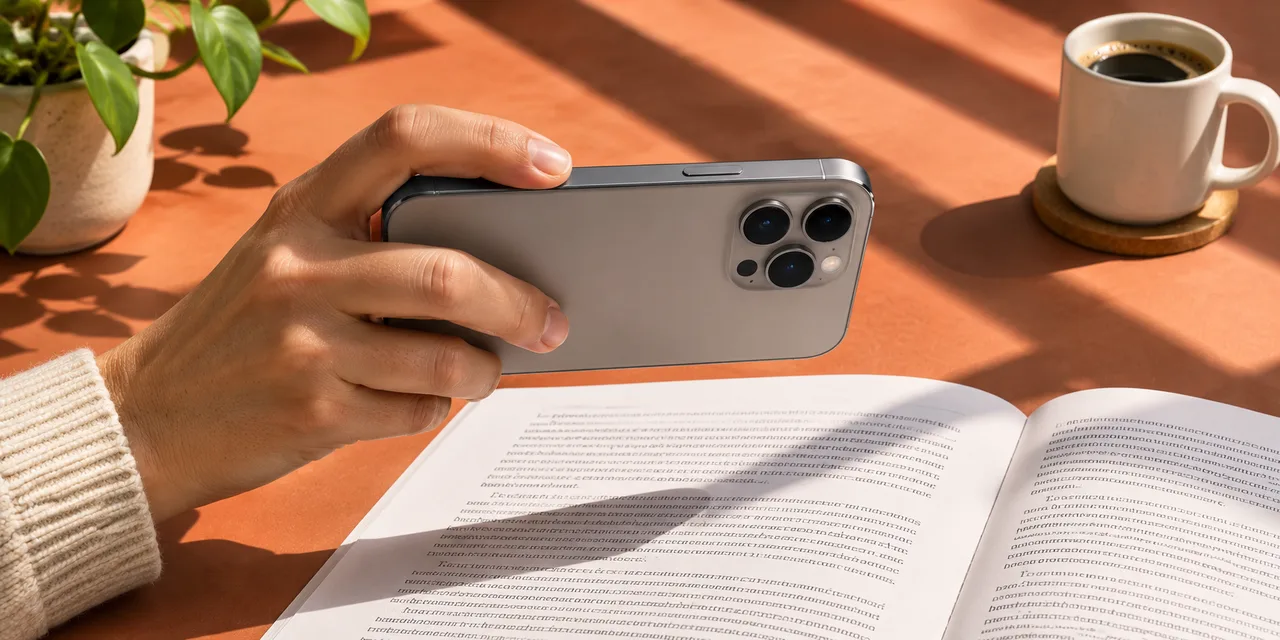
To read text from a photo aloud on iPhone, first recognize the words in the image, then play the resulting text with a speech voice. In Local TTS, use Choose photo or Scan document, review the extracted text, confirm its reading language and save it to the reader. Check the words before listening.
The two steps: recognize the words, then read them
A photo contains pixels, not a ready-to-read paragraph. Optical character recognition, or OCR, turns the shapes of letters into editable text. Text to speech then turns those words into audio. If recognition gets a word wrong, the voice can read the wrong word clearly.
That is why reviewing the text is part of the process, not an optional extra. A sharp photograph of a single printed paragraph is a good first example. A curved book page, handwriting or a page with overlapping columns is harder to recognize reliably.
If you already have a PDF with selectable text, skip the photo step and use the PDF read-aloud instructions. Photographing a clean digital document usually adds an unnecessary opportunity for recognition errors.
Choose a photo or scan a printed page
- Open Add to library in Local TTS. Choose Choose photo for an image already in your photo library, or Scan document to capture a printed page with the camera.
- Select or capture a readable page. Keep the whole passage in view. If the image is only stored in the cloud, allow it to download first.
- Wait for text recognition. The app prepares the recognized text for review. An image without readable words will not produce a useful listening document.
- Check and edit the text. Compare it with the original, especially punctuation, names, numbers and the order of paragraphs.
- Confirm the reading language. Save and open the reader, choose a downloaded voice and press play.
The app can provide a free listening preview. Full listening and premium features require an in-app purchase. Try a page representative of what you want to use: a clean printed paragraph is a different challenge from a dense worksheet.
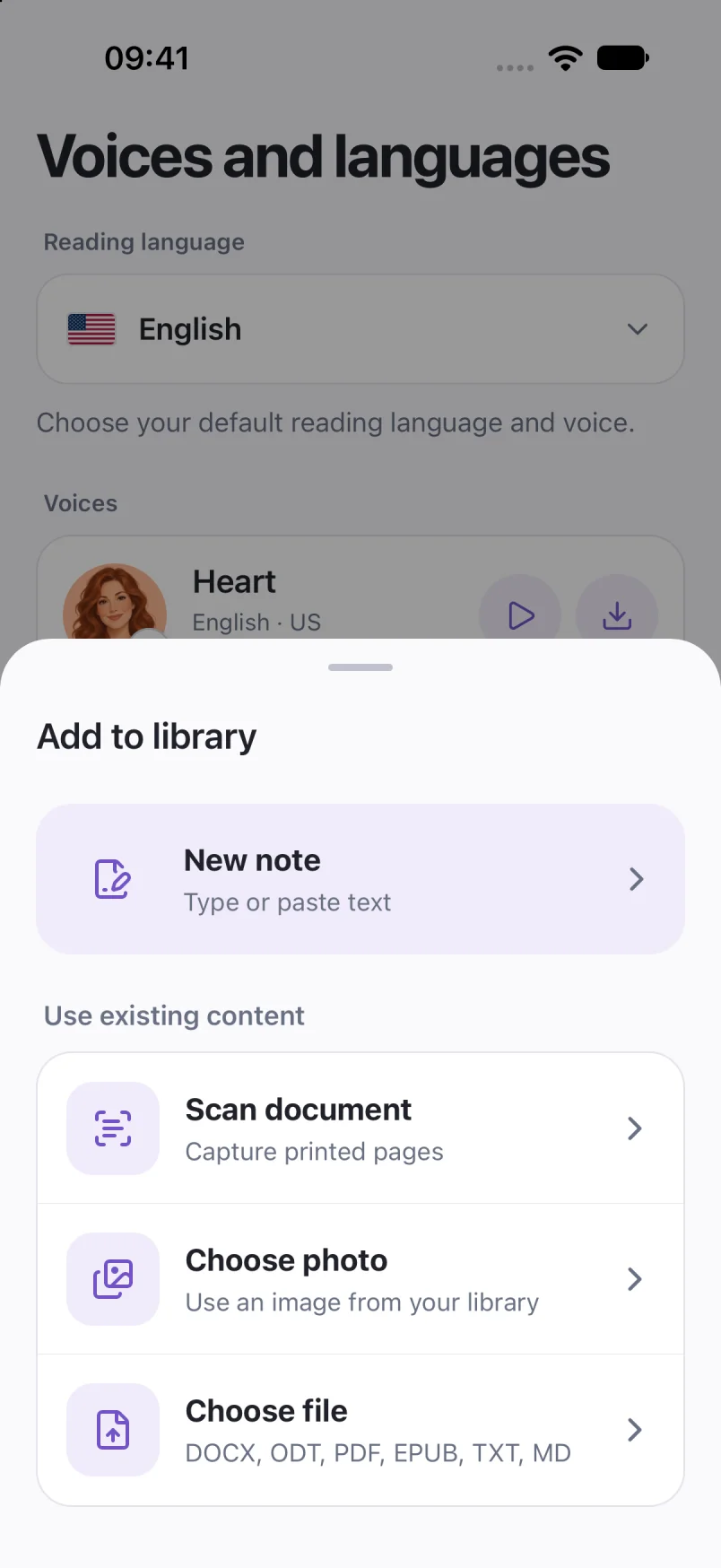
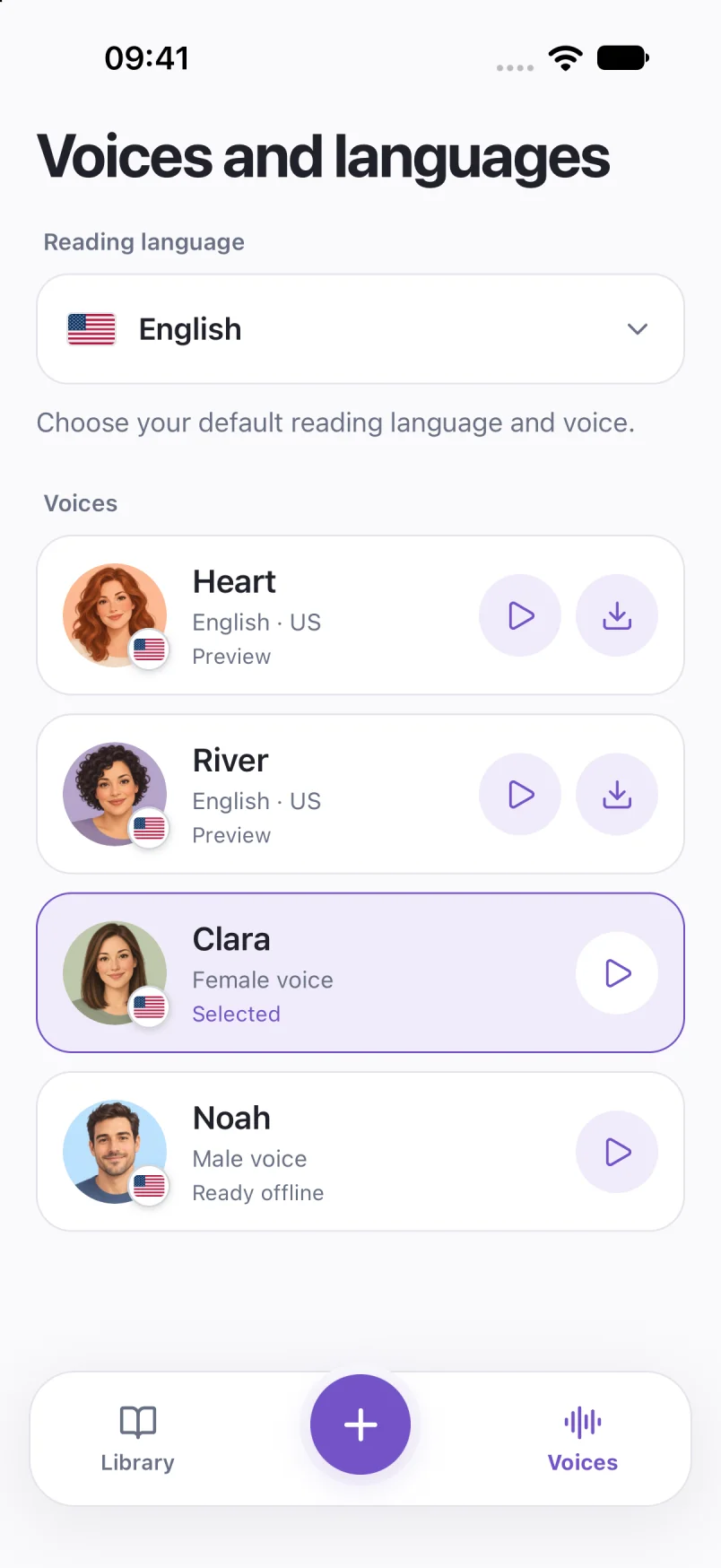
Captured in Local TTS on iPhone with sample documents. Labels and available voices may vary by app version and language.
Hear a little of what’s possible.
Clara · EnglishChoose one small idea to explore today. A few focused minutes can make a difference. Read a page, try an example, then write down what you learned. Listen again on your next walk, and return to the ideas that stay with you.
A prerecorded sample made with the voice model used in Local TTS.
Take a photo that gives the words a fair chance
Place the page flat, use even light and hold the phone roughly parallel to it. Check that the smallest text looks sharp before importing. Keep fingers, shadows and reflections away from the words.
- For a book: flatten the page as gently as possible. Text near the binding can curve and disappear into shadow.
- For columns: capture one column at a time if the recognized order keeps crossing the page.
- For a small passage: crop distractions while keeping every letter and line you need.
- For handwriting: expect more uncertainty. Review each sentence rather than assuming it was recognized accurately.
Retaking a blurry photo is often quicker than correcting a page full of mistakes. If a text-based edition of the same material is available, importing that file avoids OCR altogether. For a book, consider a DRM-free EPUB you can listen to directly.
Check the words before you press play
Compare the first and last line, then look at names, dates and unusual words. Check whether a line-break hyphen split a word or a page number slipped into the middle of a sentence. These small errors are easy to miss visually and obvious when spoken.
Illustrative correction
Intended text: Meet at the library at 10 am.
Possible recognition error: Meet at the library at IO am.
Correct IO to 10 before listening. This example illustrates the check; it is not a measured OCR result.
Read across paragraph boundaries as well. A voice cannot recover the intended structure if OCR joins a heading to a footnote or reads two columns as one line. Edit the reading copy into the order you want to hear.
Language selection is another check. The languages supported by speech voices and the languages recognized reliably from an image are different questions. Choosing a reading language changes pronunciation; it does not translate the photo.
For a short passage, you can also start with Apple Live Text
On a supported iPhone, Live Text can copy words from a photo. Open the image in Photos, touch and hold a word, adjust the selection and copy it. You can paste the result into a new note in Local TTS and check it before listening.
Apple also documents reading recognized text with Speak Selection. That may be enough when you only need a short passage spoken once. Use Local TTS when you want to keep the text in your listening library and return to it later.
Device and language support varies. Apple’s Live Text instructions and requirements are the reference for that system feature.
Keep the page for your next walk
Give the saved document a title you will recognize later. Play a few sentences and choose a comfortable speed. You can follow the highlighted words or continue with the screen locked once playback is running.
For offline listening, prepare the recognized text and download your voice before you leave. A photo that still needs to be fetched from a cloud library can interrupt preparation without a connection. Use the offline setup checklist to verify the whole sequence on your phone.
If the result is poor, return to the original image rather than trying more voices first. Check sharpness, contrast and reading order. Speech can only work with the text it is given.
Common questions
Can I read a screenshot aloud?
Yes, a screenshot containing readable text can be used through the photo workflow. Check the recognized words and remove navigation labels or other screen content you do not want read aloud.
Does importing a scanned PDF do the same thing?
No. Ordinary PDF import expects selectable text. Choose photo and Scan document are the dedicated recognition paths. An image-only PDF needs a text layer or a suitable image or camera workflow first.
Can the app translate the text in a photo?
Selecting a reading language or voice does not translate text. This guide covers recognition and reading aloud in the language of the original words.
Sources & useful references
- Local TTS photo recognition and scanning features
- Apple: copy and read text from photos with Live Text
Instructions use English app labels; wording may differ by language or version. This guide describes Local TTS features and includes practical checks for your own files.