
Save Text to Speech as an Audio File on iPhone

Local TTS Pro can turn a saved document into an M4A audio file. Review the text, choose a downloaded voice, use Export audio in the reader and save the result through the iOS share sheet. Local TTS exports M4A, not MP3; ordinary listening inside the app does not require an export.
Listening in the app vs saving an audio file
When you press play in the reader, Local TTS generates speech for your listening session. The reader keeps your text and playback controls together. This is the simplest choice when you want sentence highlighting, a saved reading position and a voice you can change later.
An export creates a separate audio file. That is useful when you want to keep narration in Files, open it in another compatible player or share it yourself. The file contains sound, not the interactive reading interface.
You do not have to export an entire document before a flight. If your goal is only listening without a connection, prepare the voice and saved document instead. Export when you actually need a portable audio copy.
Check the words and voice first
Listen to a short passage before exporting a long document. Correct obvious recognition errors, expand abbreviations that sound wrong and check the reading language. An audio file will preserve the narration as generated; editing the document afterwards does not rewrite a file you already saved.
For a Word document, check list and table order. For text recognized from a photo, compare names and numbers with the source. These checks matter more than choosing a faster playback speed.
Keep the first export short. A paragraph lets you check the end-to-end workflow, filename and receiving player before spending time on a complete book. Generation time and file size depend on the amount of text, selected voice and device; there is no fixed duration estimate here.
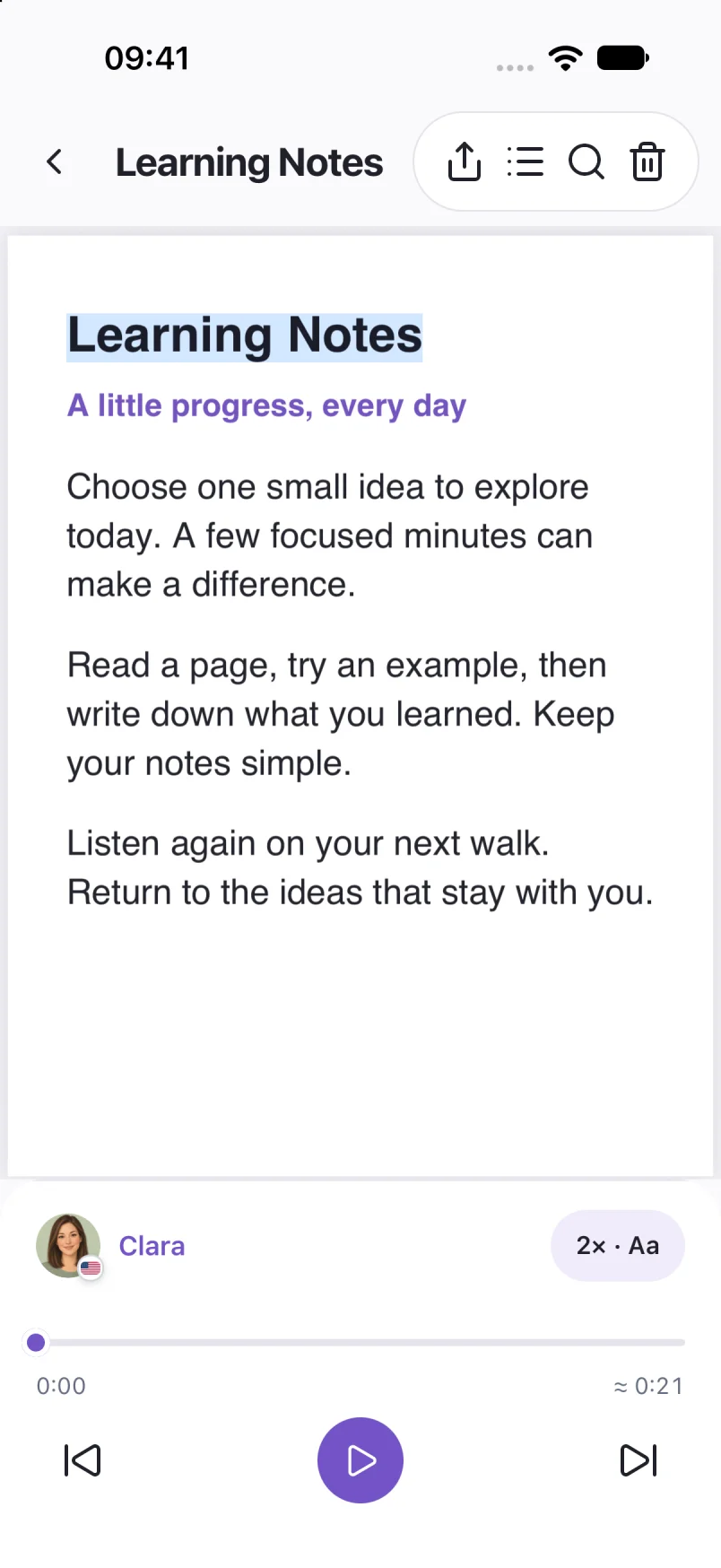
Captured in Local TTS on iPhone with sample documents. Labels and available voices may vary by app version and language.
Hear a little of what’s possible.
Clara · EnglishChoose one small idea to explore today. A few focused minutes can make a difference. Read a page, try an example, then write down what you learned. Listen again on your next walk, and return to the ideas that stay with you.
A prerecorded sample made with the voice model used in Local TTS.
Export your narration as M4A
- Open the saved document. Check that the text is the version you want to keep.
- Select the reading voice. Finish any required voice download while online.
- Choose Export audio. Use the reader’s export action. If prompted, review the Pro options before making a purchase.
- Let the export finish. Keep the app open for this first check and wait for the sharing options. Do not assume an unfinished export has been saved.
- Save a copy. In the iOS share sheet, choose Save to Files if available, then select a folder you can find again.
- Open the saved M4A. Listen to the start and the end to confirm you saved the complete result.
Sharing options depend on the apps installed on your iPhone. Choosing a cloud folder or sending the file to another person is a separate action you control. Local speech generation does not make an exported file private after you choose to share it elsewhere.
If the file is missing or does not play
- No saved file: check that you completed a save or share action. Closing the share sheet does not itself put a permanent copy in your chosen folder.
- Export does not finish: check available storage, try a shorter document and confirm the voice is downloaded. Retry from the reader rather than treating a partial result as complete.
- The next app rejects it: check whether that app accepts M4A. Changing the filename extension to .mp3 does not convert the audio.
- The words sound wrong: correct the text or voice selection and make a new export. Keep the old file only if you still need it.
If you plan to publish or commercially distribute narration, separately check permission for the source text and the applicable voice/model terms. Having an export button does not grant rights to every book or voice use.
Common questions
Can Local TTS export MP3?
No. The app’s export format is M4A. Use a receiving app that supports M4A; renaming an extension does not convert formats.
Is audio export included in the free preview?
Audio export requires Pro. You can check how your document sounds using the free listening preview before choosing an in-app purchase.
Will edits update a file I already exported?
No. An exported audio file is a separate copy. Export again after changing the text or voice if you want those changes in the audio.
Sources & useful references
Instructions use English app labels; wording may differ by language or version. This guide describes Local TTS features and includes practical checks for your own files.