
Turn Study Notes into Audio on iPhone for Your Commute

Start with a short set of notes, rewrite fragments into sentences and paste or import them into Local TTS. Choose a voice in the notes’ language, listen to the preview and correct anything that sounds unclear. Download the voice and save the note before your commute; Pro supports full listening and M4A export.
Make your notes easier to listen to
A page designed for your eyes may rely on arrows, color and indentation. Audio removes those clues. Before importing, choose one topic and turn the relationships you care about into words.
Expand abbreviations the voice mispronounces, introduce each new topic with a short heading, and write out labels that would otherwise be lost. Keep diagrams in the original notes for later review. Local TTS reads text; it does not infer the explanation hidden in a sketch.
Original shorthand
Paragraph: 1 idea → example → explain. New idea = new para.
A listening copy
A paragraph develops one main idea. Start with the idea, add an example, and explain how the example supports it. Begin a new paragraph when you move to a different idea.
This is an original example of rewriting for clarity, not an automatically generated summary. Keep a copy of your original notes so you can check details that you leave out of the listening version.
Turn a short review sheet into speech
- Choose a manageable passage. Start with one topic, not a whole folder of lecture material.
- Add the text. In Local TTS, open Add to library and use New note to type or paste. Use Choose file if your notes are already in a supported document.
- Check the reading language. Match it to the text and choose a downloaded voice.
- Listen to the preview. Notice abbreviations, missing transitions and sentences that are too long to follow by ear.
- Edit and save. Give the note a title you will recognize when you return to the library.
For Word files, use the DOCX guide. For a photographed page, review the recognized text with the photo import steps before relying on the narration.
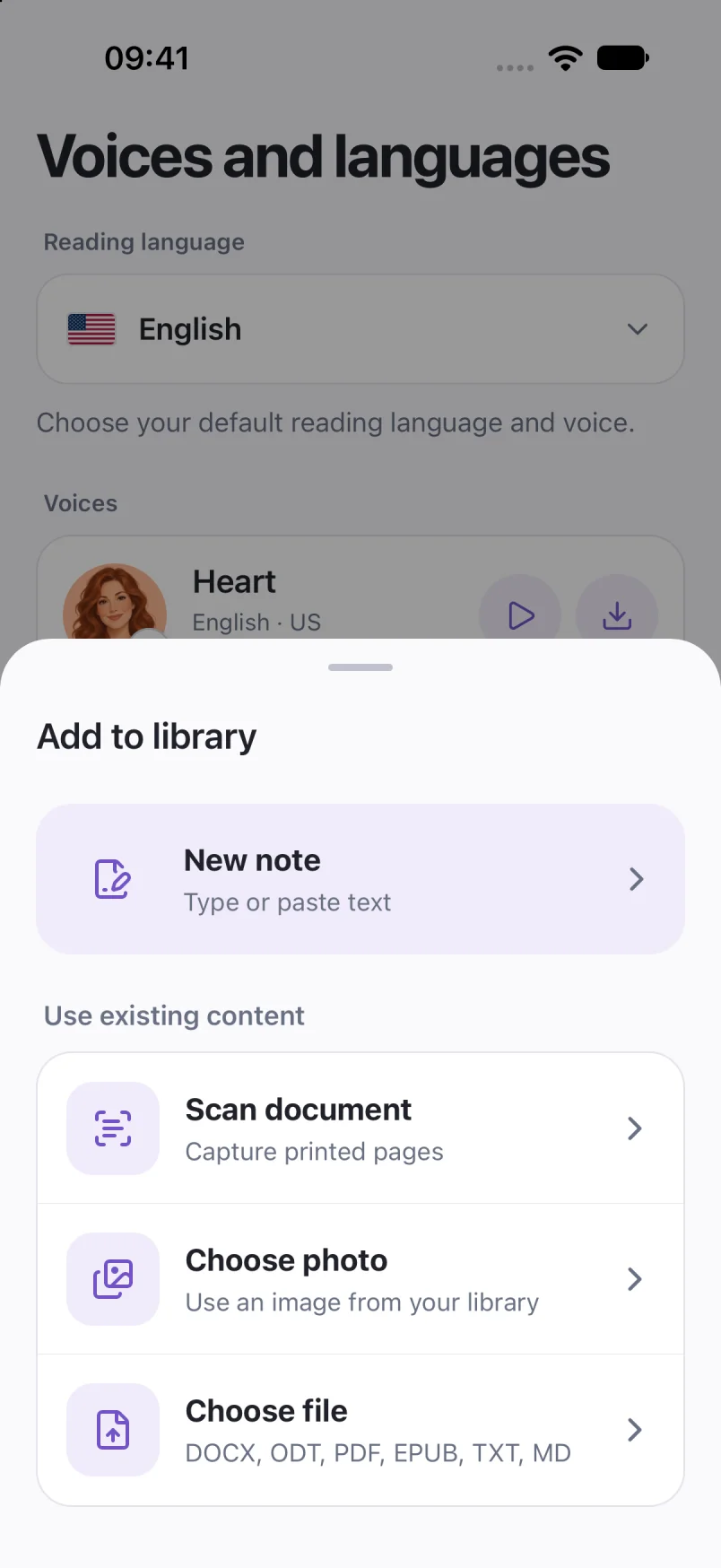
Captured in Local TTS on iPhone with sample documents. Labels and available voices may vary by app version and language.
Hear a little of what’s possible.
Clara · EnglishChoose one small idea to explore today. A few focused minutes can make a difference. Read a page, try an example, then write down what you learned. Listen again on your next walk, and return to the ideas that stay with you.
A prerecorded sample made with the voice model used in Local TTS.
Listen, pause and check what you remember
Begin at a pace where you can follow the meaning without seeing the page. Pause after a short topic and try explaining it in your own words. If you cannot, return to the relevant passage and compare it with your original notes.
You can use sentence highlighting when looking at the screen, then continue with the phone locked once the passage is comfortable. Listening is another way to revisit material, not proof that you have understood it or a promise of better grades.
Leave time to return to diagrams, equations and source readings. A list of symbols that works on a worksheet may be confusing when spoken. For material that depends on visual structure, audio should accompany the original rather than replace it.
Prepare before your commute
Save the note and finish the voice download while connected. Play a new passage with Wi-Fi and cellular data off before you leave. The offline setup guide covers the checks in detail.
Use headphones at a level that lets you stay aware of your surroundings. Choose and organize the reading before you start moving, so you do not need to manage a long list of files on the way.
If you want a separate audio copy, export M4A with Pro. Keep the text as well: an audio export does not replace the editable note or automatically change when your notes are revised.
After listening, rename or update the note if the topic changes. A small library of clear, focused review sheets is easier to revisit than one recording that contains everything from an entire course.
Common questions
Does Local TTS summarize my lecture notes?
No automatic summary is promised here. You prepare the text you want to hear; Local TTS turns that text into speech.
Can I listen to handwritten notes?
You can try recognizing a photo, but handwriting quality varies. Review the extracted words carefully or type a clean listening copy when recognition is unreliable.
Can I keep the audio outside the app?
Pro can export an M4A audio file. You can also listen directly in Local TTS without an export after preparing the voice and saved note.
Sources & useful references
Instructions use English app labels; wording may differ by language or version. This guide describes Local TTS features and includes practical checks for your own files.