
How to Keep Text to Speech Playing with iPhone Locked
Start a document playing in Local TTS, check that you can hear it, then lock your iPhone with the side button. Local TTS supports background and locked-screen listening. Download the selected voice and keep the document on your phone first if you want the session to work without internet.
Start reading, then lock your iPhone
- Open a saved document. Start with a short note or a passage you can recognize.
- Check the voice. Make sure the selected voice is downloaded. Hearing a voice preview does not mean its full package is ready.
- Press play and listen. Let the reader move into the next sentence so you know playback is running.
- Lock the phone. Press the side button once. Listen for another sentence with the screen off.
- Return to the reader when needed. Unlock the phone to review the text, change the voice or adjust your reading setup.
You do not need to leave the display on or disable Auto-Lock for a normal Local TTS listening session. If your first attempt stops, use the checks below rather than changing screen settings immediately.
Set up a session that lasts as long as you need
Choose a pace you can follow without looking at the highlighted text. A document full of unfamiliar names may be more comfortable at a slower speed than an everyday note. Test your headphones before putting the phone away.
Check the sleep timer in Listening preferences. A timer is useful at bedtime, but an old timer choice can make a daytime session end sooner than expected. The screenshot below shows the real reader preferences with the timer off; it is not a Lock Screen capture.
If you are preparing for a trip, use the offline checklist before you leave. Background playback and offline speech are separate requirements: the first lets the screen go dark, while the second needs a downloaded voice and locally available text.
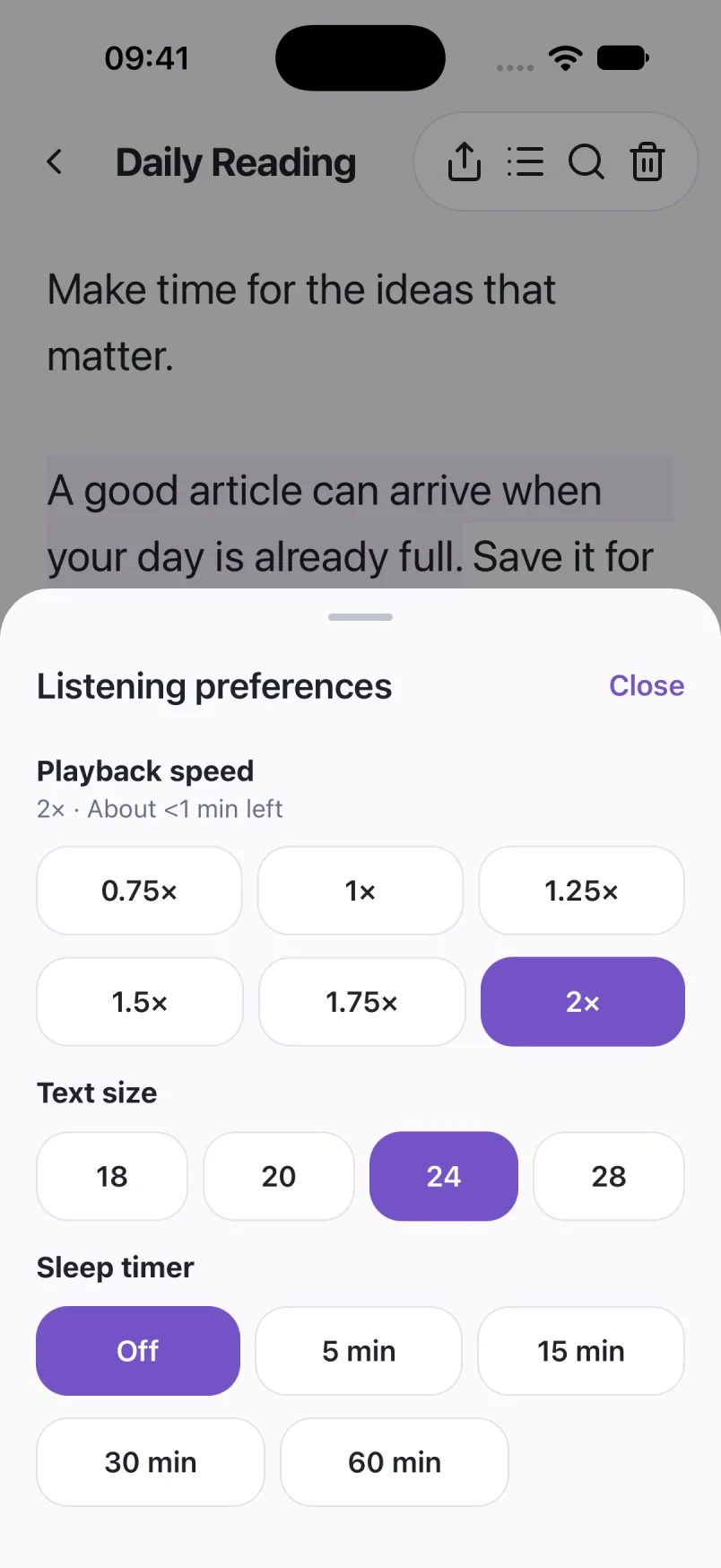
Captured in Local TTS on iPhone with sample documents. Labels and available voices may vary by app version and language.
Hear a little of what’s possible.
Clara · EnglishChoose one small idea to explore today. A few focused minutes can make a difference. Read a page, try an example, then write down what you learned. Listen again on your next walk, and return to the ideas that stay with you.
A prerecorded sample made with the voice model used in Local TTS.
What to check if the audio stops
| What you notice | What to check |
|---|---|
| Nothing is audible | Raise media volume while playback is running. Check whether sound is routed to disconnected or unexpected headphones. |
| It stops after a short preview | The free listening preview has a limit. Full listening requires an in-app purchase; see the plan shown in the app. |
| It stops after a set interval | Review the sleep timer and whether the document has reached its end. |
| It stops when another app plays sound | Pause the other audio and restart your reading session. Calls and other audio sessions can interrupt playback. |
| It asks for a voice download | Reconnect and complete the selected voice package, then repeat the offline check. |
After an interruption, check where the reader is before resuming. Do not assume a call or another media app will always return audio control automatically. Avoid force-closing Local TTS while you want it to keep playing.
Pick up where you left off
Saved reading progress helps you return to a document later. When you reopen it, listen to the current sentence and move back if you want a little context. Long documents are easier to manage when their titles clearly describe what you meant to listen to.
For a book, see the EPUB guide. For a report or handout, start with reading a PDF aloud. Both use the same idea: prepare the file, check a short passage, then listen on your own schedule.
If a problem repeats with a short note and a downloaded voice, note the app version, the selected voice and whether other audio was active. Those details help support investigate without sending the contents of your private document.
Common questions
Should I turn off Auto-Lock?
That should not be necessary for supported background playback. Start the audio, lock the screen and check the voice, timer, output and preview limit if playback stops.
Will phone calls interrupt the narration?
Calls and other audio sessions can interrupt listening. Check the reader and resume when you are ready; do not rely on automatic resumption after every interruption.
Does locked-screen listening require an audio export?
No. You can listen directly in Local TTS. Exporting M4A with Pro creates a separate file for use outside the reader.
Sources & useful references
Instructions use English app labels; wording may differ by language or version. This guide describes Local TTS features and includes practical checks for your own files.