
iPhone Speak Screen vs a Reader App: Which Do You Need?
Try iPhone’s built-in Speak Screen or Speak Selection for text already open on your screen. A dedicated reader such as Local TTS is useful when you want to import documents into a listening library, return to a saved reading position or export narration. The right choice depends on your task, not on whether a feature is called AI.
When Speak Screen is enough
For a short passage that is already visible in an app, start with Apple’s built-in reading options. There is no need to import a document into a second library just to hear a few paragraphs.
Apple’s current guide places these controls under Settings → Accessibility → Read & Speak. Enable Speak Selection to hear selected text, or Speak Screen to hear the screen. With Speak Screen enabled, a two-finger swipe down from the top starts reading. Earlier iOS versions may call the settings group Spoken Content.
Apple also provides voice, rate and highlighting controls. Check the official guide linked below for the options on your iOS version. These reading controls are distinct from VoiceOver, which changes how you navigate the interface.
When a document library helps
A dedicated reader becomes useful when listening is a recurring task: a book today, a work document tomorrow and a note to revisit on the weekend. Local TTS stores imported reading material together and keeps reading progress for later sessions.
Its workflow starts with your file. You import a text-based PDF, a DRM-free EPUB or another supported document, review the text and choose a voice. Speech is generated on your device after the voice download.
This adds a preparation step, which is worthwhile only if the library and listening controls help you. If you prefer keeping a short piece of text in the original app, the built-in reader may already do what you need.
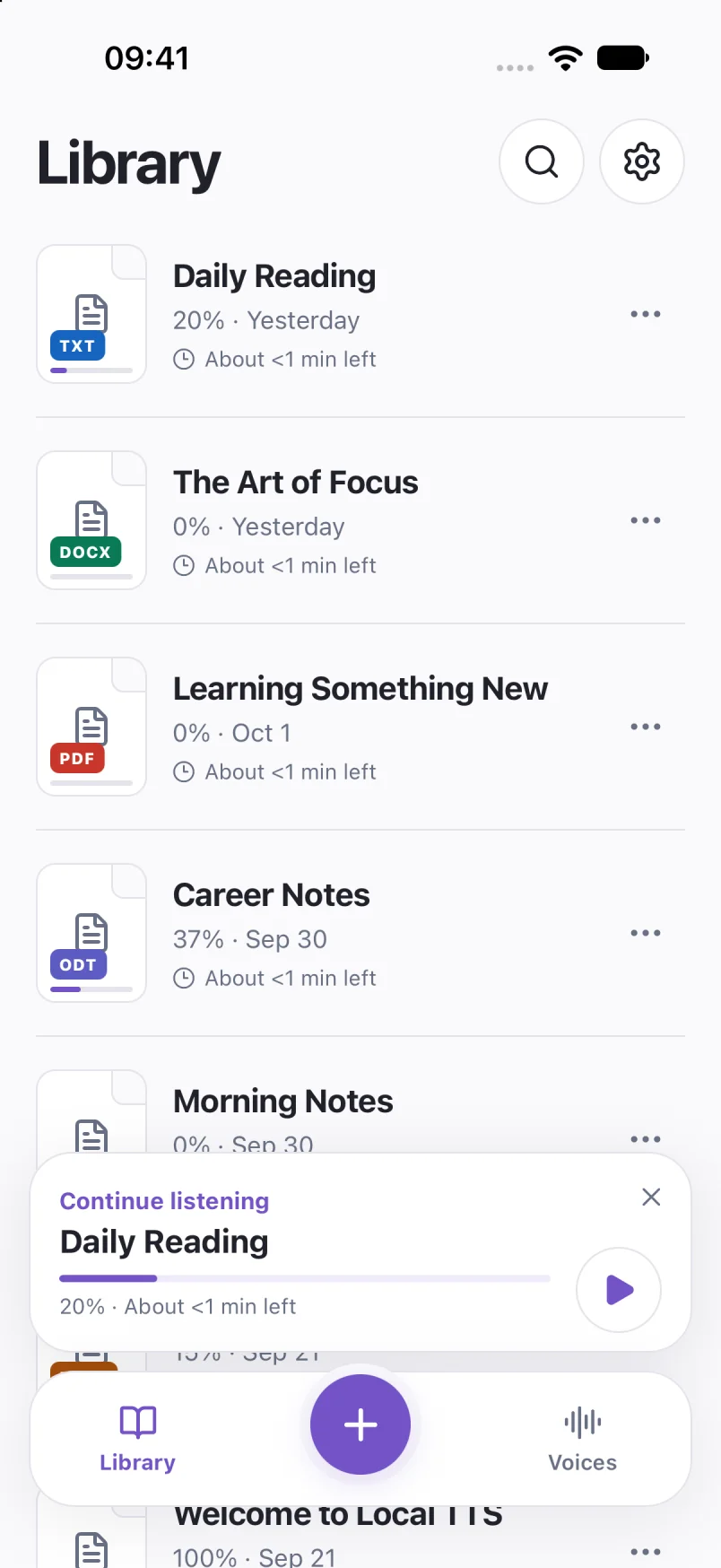
Captured in Local TTS on iPhone with sample documents. Labels and available voices may vary by app version and language.
Hear a little of what’s possible.
Clara · EnglishChoose one small idea to explore today. A few focused minutes can make a difference. Read a page, try an example, then write down what you learned. Listen again on your next walk, and return to the ideas that stay with you.
A prerecorded sample made with the voice model used in Local TTS.
Compare the task you actually want to finish
| Your task | A sensible starting point |
|---|---|
| Hear a short passage on the screen | Try Apple’s Speak Selection or Speak Screen before installing another app. |
| Keep several documents ready for later | A dedicated library such as Local TTS can keep imported reading and progress together. |
| Listen without a connection | In Local TTS, prepare the document and downloaded voice, then test a new passage offline. |
| Save a narration file | Local TTS Pro offers M4A export. Check the output format required by your next app. |
| Hear text from a difficult scan | First solve recognition quality. Choosing a different reader does not automatically fix missing or incorrect text. |
This table describes useful starting points, not an exhaustive claim that only one tool can perform each task. Apple’s features and third-party readers evolve. Compare your own file rather than choosing from a feature count.
Compare the same passage in both
Choose a paragraph with the kind of text you read most often: names in a report, dialogue in a book or abbreviations in your notes. Listen at a comfortable rate in the built-in reader, then use the same text in a Local TTS preview.
- Check the words. Is the pronunciation comfortable? Did an import change the reading order?
- Check the next session. Can you easily find the text and continue where you want?
- Check your actual setting. If you need locked-screen listening or offline speech, try that setup with the selected voice.
- Check the purchase boundary. Local TTS has a free listening preview; full listening and premium features require an in-app purchase.
There is no need to pick one method permanently. You might use Speak Selection for a quick message and keep longer documents in a reader. Choose the smallest workflow that solves the reading in front of you.
Common questions
Do I need a paid app to hear text on my iPhone?
Not necessarily. Apple includes spoken-text accessibility features. Try them for a short passage; a dedicated reader may be useful for its document library, workflow or export options.
Is Speak Screen the same as VoiceOver?
No. Speak Screen reads onscreen text. VoiceOver is a screen reader that also changes how you navigate and interact with the device.
Does Local TTS replace the built-in iPhone reader?
You can use both. Local TTS focuses on importing and listening to your own documents; the built-in options remain available for text in other apps.
Sources & useful references
- Apple: hear iPhone speak the screen and selected text
- Local TTS features and purchases on the App Store
Instructions use English app labels; wording may differ by language or version. This guide describes Local TTS features and includes practical checks for your own files.